Introduction
As part of this guide, you will be taken through step-by-step to assist you with registering SIP video endpoints to the Synergy SKY Registrar.
More information can be found here
Configuration of SIP Endpoints - Cisco
- Factory reset the endpoint
- During the initial setup, on the "Call Service" screen; select "Other Services" then "Advanced Setup"
- Log in to the web interface using admin credentials. (https://<endpointIPAddress>)
- Default is admin with no password
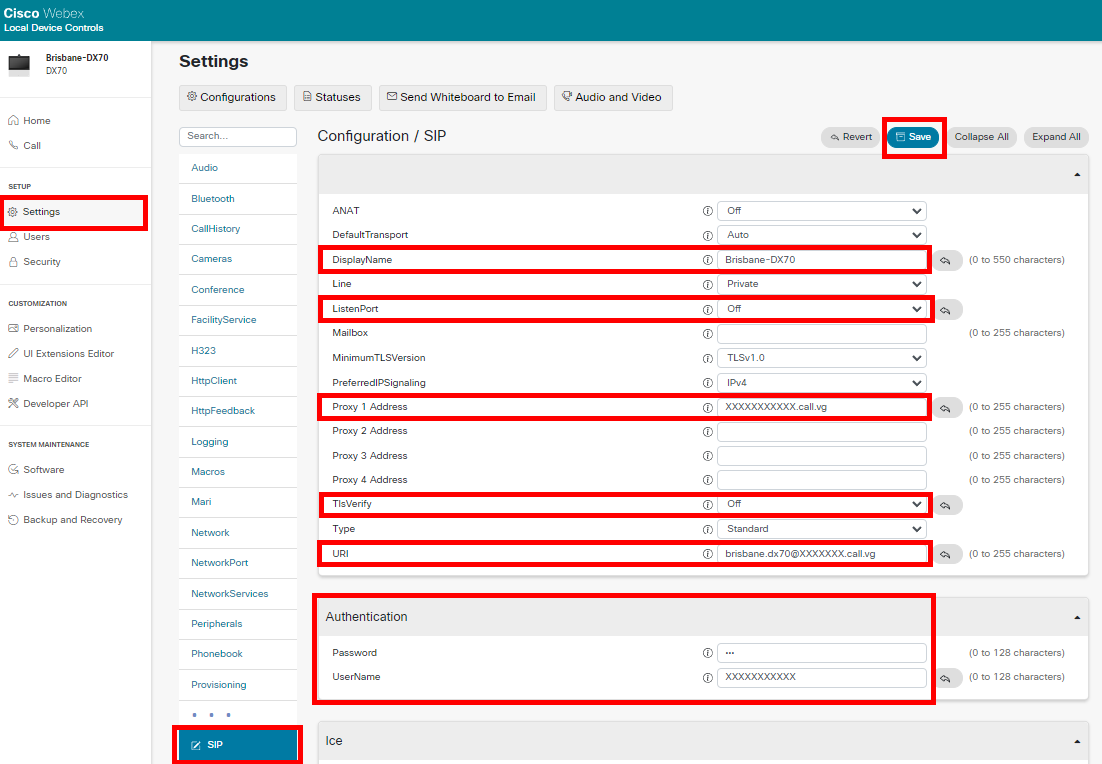
- Under ‘Settings’ or ‘Configuration’ (depending on software version of endpoint) select ‘SIP’
- Input information in the following sections:
- Display Name – Name to be displayed when in call to other participants
- ListenPort – For network security this is best set to Off
- Proxy 1 Address – This is the Registrar Proxy address
- Default: osip.call.vg
- TlsVerify
- Off - Recommended
- On - Advanced
- You will need to add Let's Encrypt ISRG Root X1 certificate to your video system.
- Their certificates can be found HERE
- Navigate to Security -> Custom
- Add Certificate Authority and restart the system
- URI – This is the SIP URI for the Endpoint to be called on
- Authentication – Username & Password (provided by Synergy SKY)
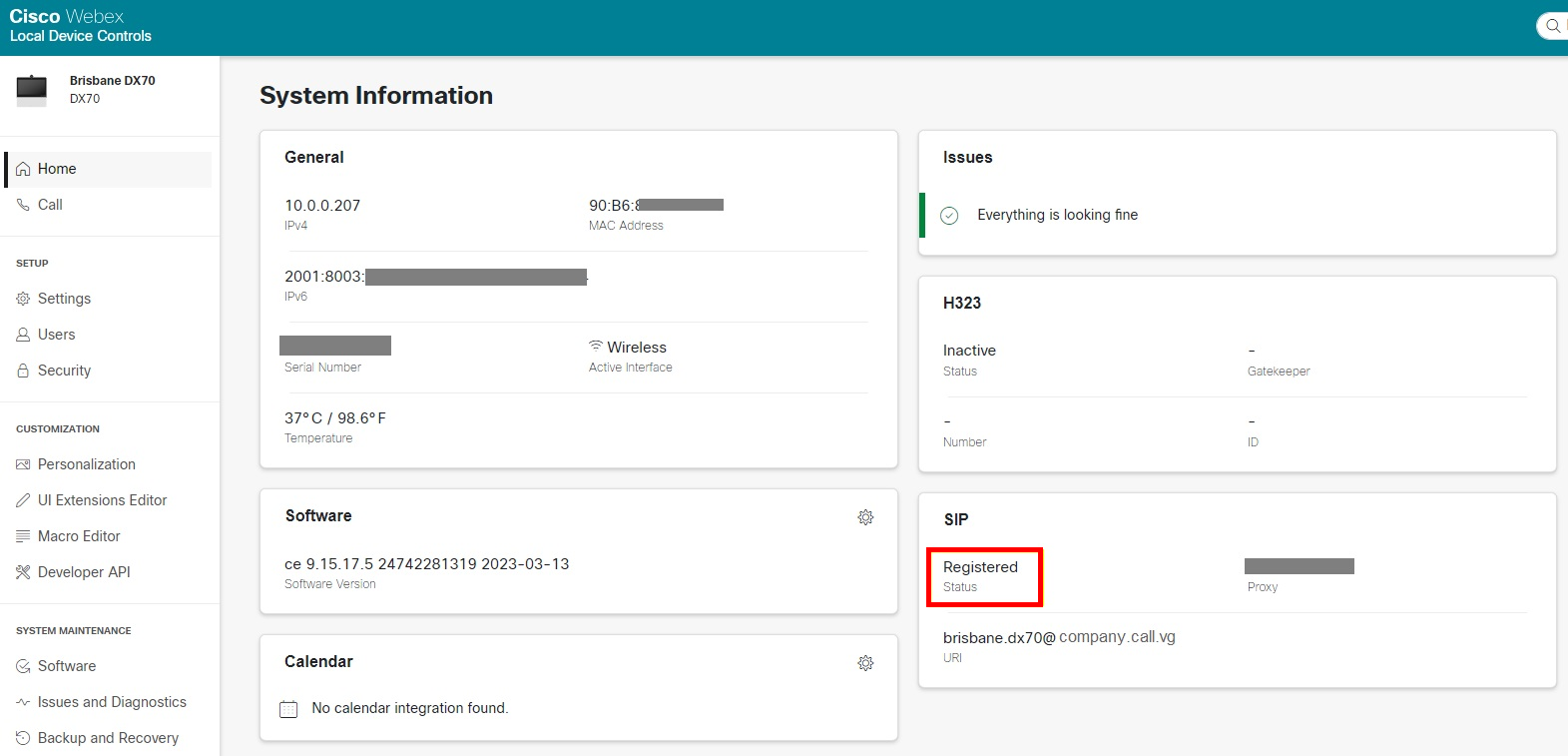
- Save this configuration and check status of the web interface's home page
Configuration of SIP Endpoints – Poly
- Take note of Option Key(s) prior to factory reset, as these are not automatically retained
- Factory reset the endpoint
- Log in to the web interface using admin credentials. (https://<endpointIPAddress>)
- Default is admin and either Full Serial Number of Endpoint (QDX, HDX or Group series) or last 6 digits of the Serial Number (X-series)
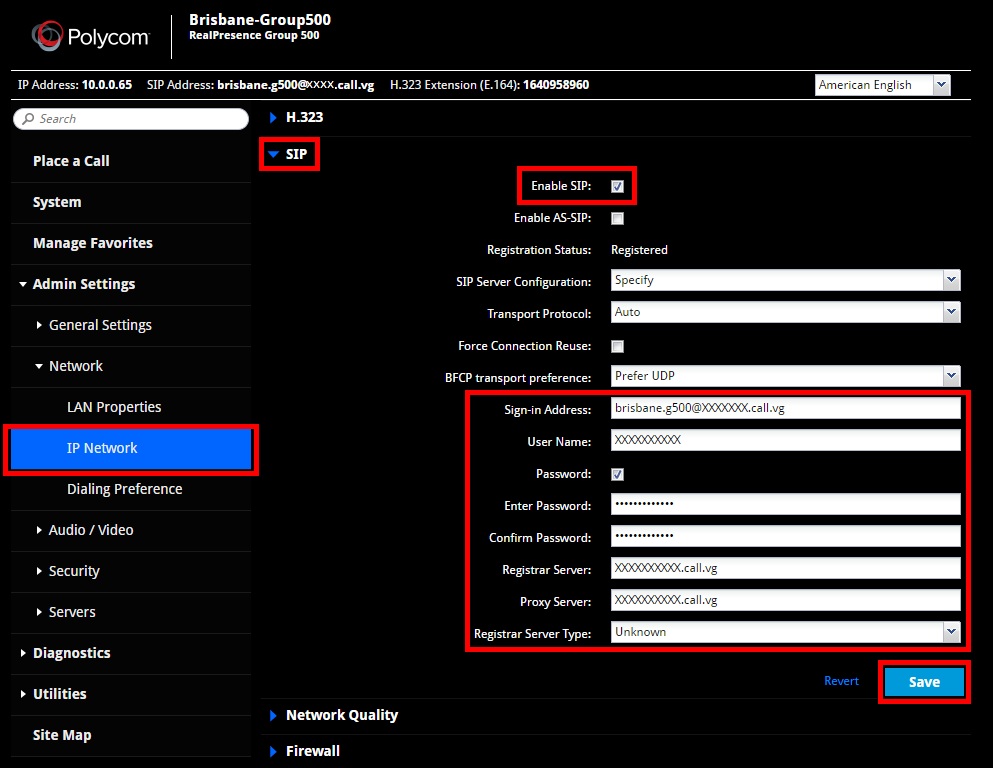
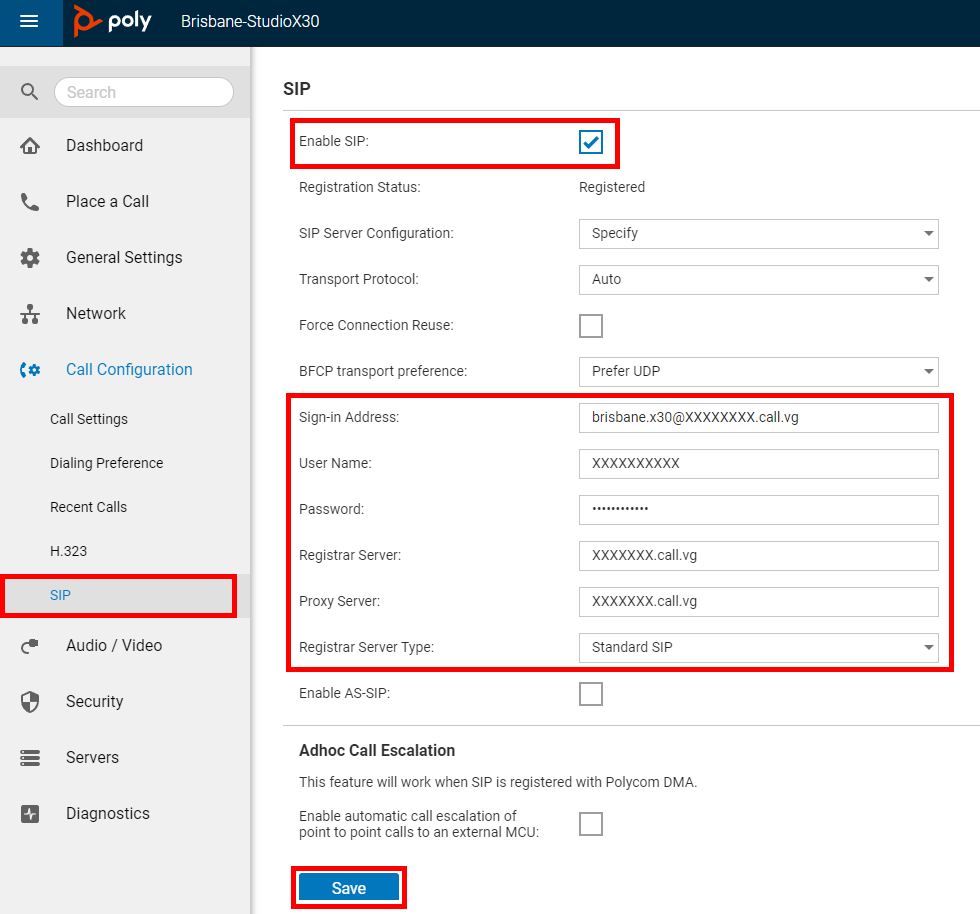
- Access SIP configuration page:
- For QDX, HDX and Group series go to Admin Settings > Network > IP Network and expand SIP
- For X-series go to Call Configuration > SIP
- Input information in the following sections:
- Enable SIP: Make sure this is checked
- Sign-in Address - This is the SIP URI for the Endpoint to be called on
- User Name – Username will be provided by a Synergy SKY Representative
- Password: Password will be provided by a Synergy SKY Representative
- Registrar Server – This is the Registrar Proxy address as provided in your license document
- Proxy Server – This is also the Registrar Proxy address as provided in your license document
- Registrar Server Type – Set to Unknown or Standard SIP (depending on endpoint)
- Save this configuration and you should see "Registration Status: Registered"